Transcription comes in two forms: converting pre-recorded audio to text after the fact, or converting speech to text in real time as it happens.
Real-time transcription displays spoken words as text immediately during meetings, making it invaluable for live note-taking, captioning, and any situation requiring immediacy. This article explains how real-time transcription works and its practical applications.
How Real-Time Transcription Works
Basic Processing Flow
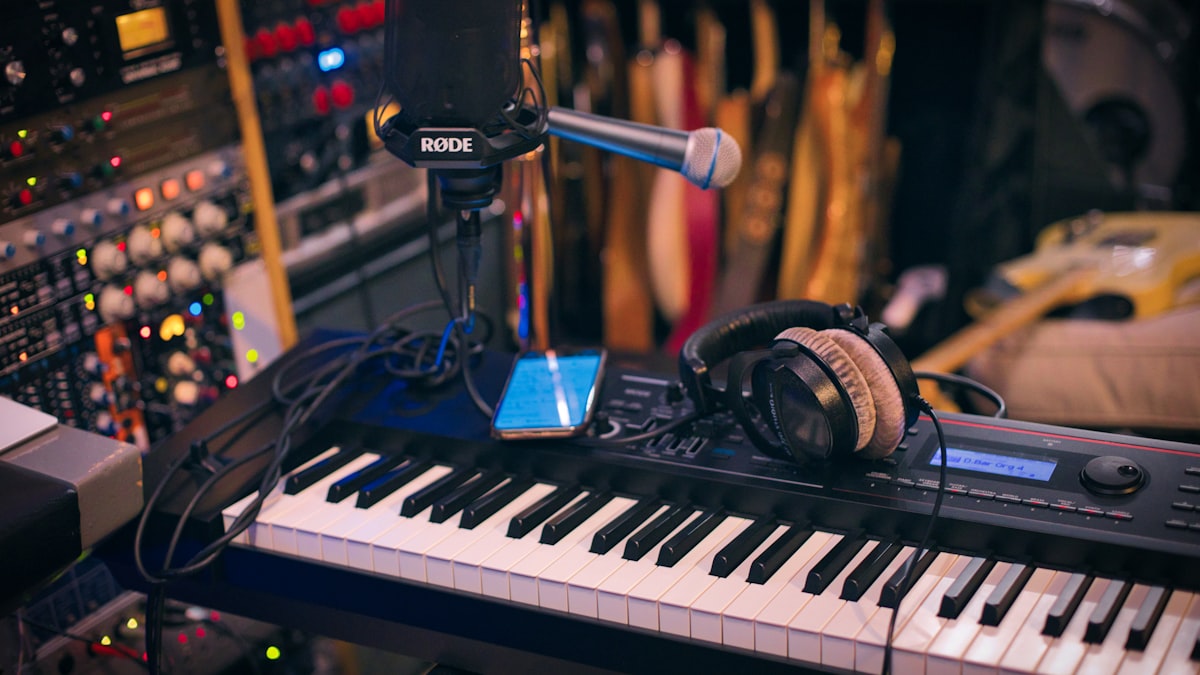
- Audio capture: Acquire audio in real time from microphone or PC internal audio
- Buffering: Accumulate a few seconds of audio at regular intervals
- AI recognition: Process the buffered audio through an AI model like Whisper
- Text output: Display recognition results on screen in real time
Comparison with Post-Recording Transcription
| Post-Recording | Real-Time | |
|---|---|---|
| Timing | Process after recording | Transcribe as speech happens |
| Speed | Depends on audio length (can be faster) | Same speed as speech (1x) |
| Accuracy | Slightly higher (considers full context) | May vary (buffer-based processing) |
| Use case | Transcribing recorded files | Live display during meetings, captions |
Types of Audio Input
Microphone Input
For transcribing your own voice. Ideal for recording your statements in meetings or converting voice memos to text.
PC Internal Audio (Loopback)
Directly captures audio output from your PC. This lets you transcribe the other party's voice in online meetings (Zoom/Teams/Meet) or YouTube video audio in real time.
On Windows, this uses WASAPI loopback or stereo mix to capture PC output audio.
Simultaneous Mic + PC Audio Capture
WhisperApp can capture microphone input and PC internal audio simultaneously. This means during online meetings, both "your speech" and "others' speech" are transcribed in real time.
Use Cases
1. Real-Time Meeting Recording
During Zoom/Teams/Meet calls, speech appears as text in real time. By the time the meeting ends, your transcript is already complete — dramatically reducing minutes creation time.
2. Live Captioning for Lectures
Display speaker's words as live subtitles, improving accessibility for hearing-impaired attendees and non-native speakers.
3. Real-Time Video Transcription
Transcribe audio from YouTube or streaming services in real time. Even videos without subtitles can be transcribed by capturing PC internal audio.
4. Brainstorming Sessions
Record ideas in real time during brainstorming. Prevent "what did we say earlier?" moments and capture every idea without gaps.

Tips for Better Real-Time Accuracy
1. Choose the Right Model
Real-time transcription must complete processing within each buffer interval, making the speed-accuracy balance critical. large-v3-turbo offers high accuracy with fast processing, making it ideal for real-time use.
2. Use a Quiet Environment
Background noise significantly reduces real-time recognition accuracy. Use a headset or lapel mic to improve the signal-to-noise ratio.
3. Specify the Language Explicitly
Auto-detection may fluctuate between buffers. If you know the language, specify it explicitly for more consistent results.
Benefits of Local Processing
Cloud-based real-time transcription is affected by network latency, while local processing runs directly on your PC with minimal delay. Additionally, meeting audio stays on your device, making it safe for confidential meetings.
Conclusion
Real-time transcription excels in meetings, lectures, video viewing, and any scenario requiring immediacy. Combined with post-recording transcription, you can handle every transcription need.
For online meetings especially, simultaneous mic and PC audio capture ensures every participant's speech is recorded in real time without gaps.